Set up Rose
Set up Rose by connecting GitHub and choosing which repositories it should review.
Before you start
You’ll need:
- GitHub access to the repositories you want Rose to review;
- approval from a GitHub organization owner if you can’t install GitHub Apps yourself; and
- GitHub Issues enabled if you want Rose’s dashboard issue. Review results are still available in OllyGarden without it.
Sign in to OllyGarden
- Open the Rose product page.
- Select Get started.
- Create your OllyGarden account, then sign in.
Connect GitHub
- Open Instrumentation in OllyGarden. You can also go directly to the Instrumentation page.
- Select Connect GitHub and follow the GitHub App installation flow.
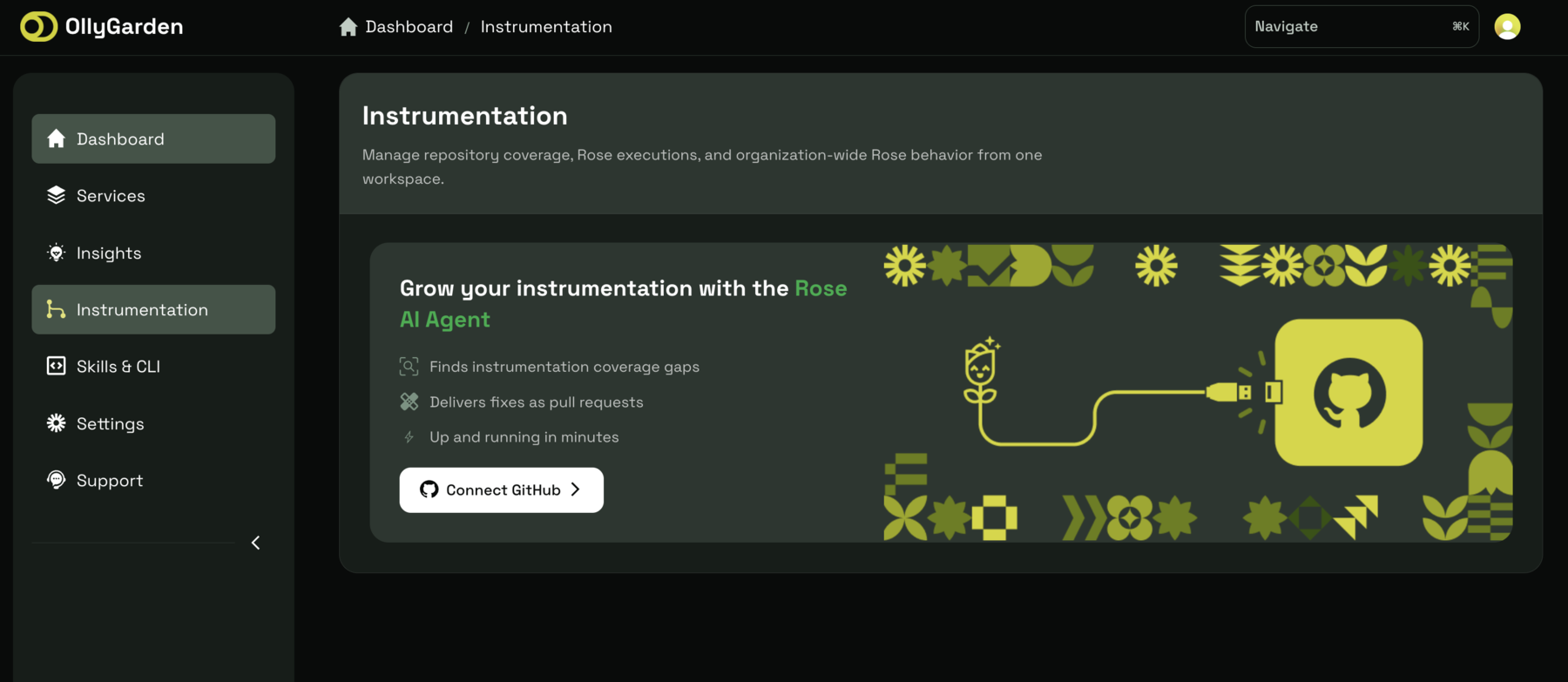
If you’re a GitHub organization owner, you can install the app directly. If you aren’t, send an installation request to an owner and continue after they approve it.
Choose GitHub App access
During GitHub’s installation flow, give the Rose GitHub App access to all repositories or only the repositories you want it to see. You can change this access after onboarding from the app’s installation settings.
Activate repositories
GitHub App access and Rose activation are two separate switches:
- App access lets the Rose GitHub App see a repository.
- Activation includes that repository in Rose.
After connecting GitHub, select at least one repository and choose Activate. You can activate more repositories later.
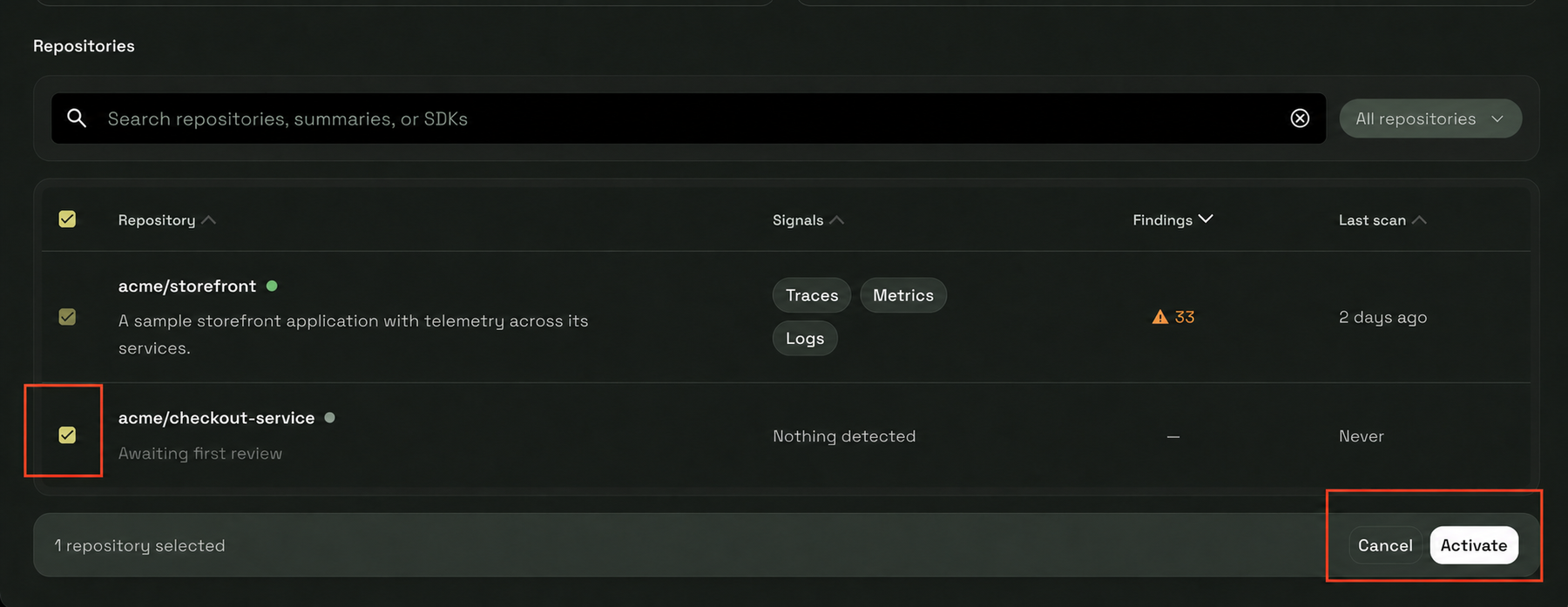
Select any screenshot to open it at full size.
What happens next
Rose schedules a Review after activation. You can follow its status and open the results in OllyGarden. If GitHub Issues are enabled, Rose can also create a dashboard issue for the repository.
Continue to Run a Review to learn what each Review state means.
Add repositories later
Already have Rose installed? Use the GitHub App installation settings shown below to grant Rose access to more repositories. Access and activation are still two separate steps:
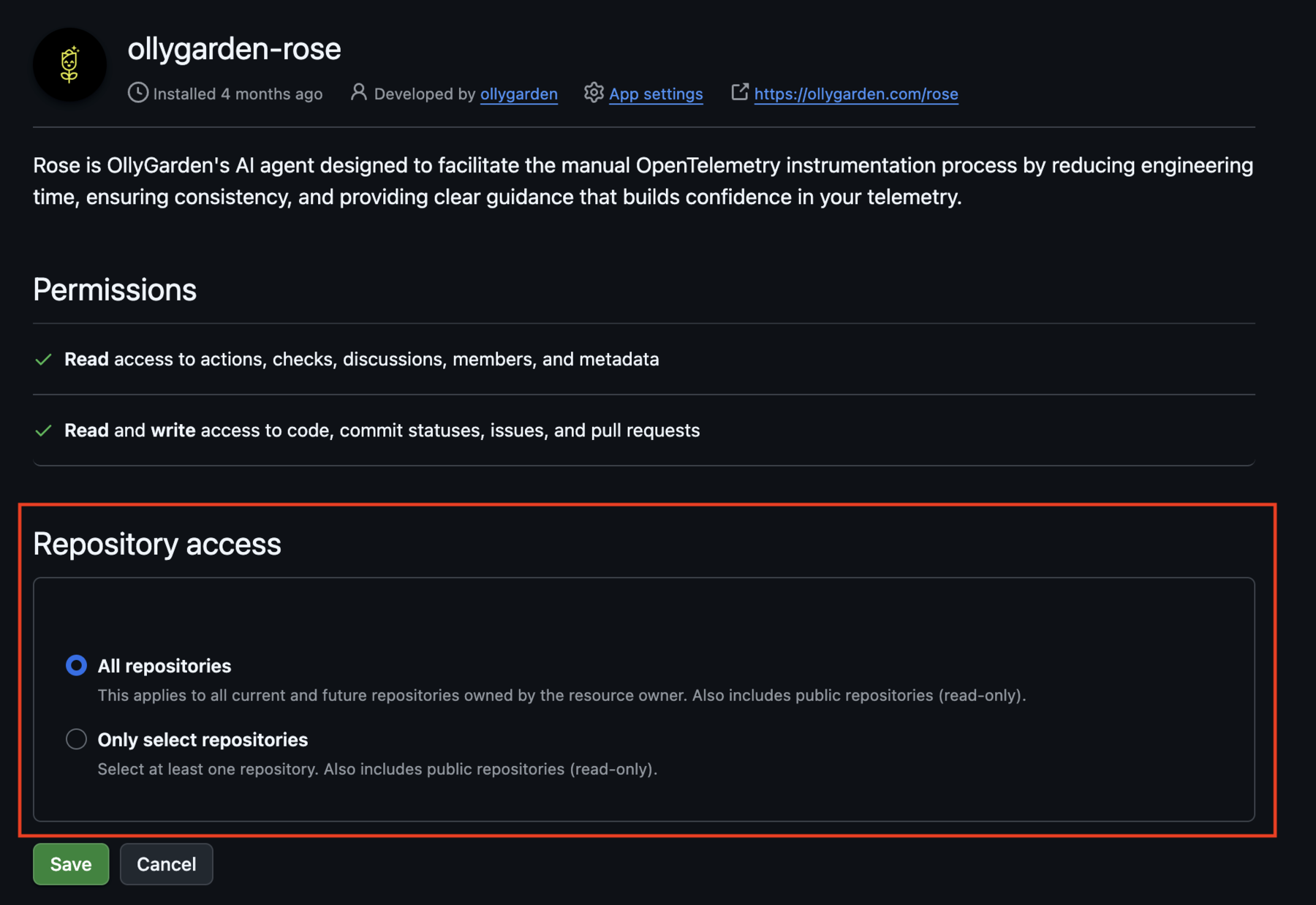
- In your GitHub organization settings, open the Rose GitHub App installation.
- Update Repository access to include the repositories you want and save the change. OllyGarden syncs the updated access automatically.
- Return to Instrumentation, select the new repositories, and choose Activate.
To deactivate a repository, contact support.
If setup doesn’t look right, troubleshoot Rose.